How to Personalize AI Tools Properly
How to Personalize AI Tools Properly
If you are trying to personalize AI tools properly, the first thing to know is this: most people are not failing because the tool is bad. They are failing because they are stuffing everything into one place and hoping the AI somehow sorts it out.
I know this because I did the same thing.
After spending time setting up ChatGPT, Claude, Gemini, and Microsoft 365 Copilot in different ways, I kept running into the same lesson. The tool started feeling more useful when I stopped treating personalization like one giant profile box and started treating it like a few separate layers.
You need one layer for your standing rules. One for your writing style. One for repeat jobs. One for the real files and systems your work already lives in.
That is what makes it feel personal.
The mistake people make
The wrong way to do this is to dump your whole personality, job, habits, business background, and every preference you have into one long settings field.
It sounds smart. It usually is not.
What you get back is often a tool that sounds vaguely familiar, but still misses the point. It may use the right tone and still give you the wrong kind of answer. Or it may remember trivia about you while ignoring the actual files and context that matter.
That is why I now think about AI setup more like organizing a workspace than writing a biography.
ChatGPT
ChatGPT was the first place where this really clicked for me.
At first I treated Custom Instructions like a junk drawer. I kept adding more rules, more preferences, more "always do this" and "never do that" notes. It worked a little, until it didn't. The answers started sounding trained instead of helpful.
What worked better was splitting the job up.
I used Custom Instructions for the rules that should follow me everywhere, like how I want answers written and what kind of pushback I want. I used Memory for the details that come up over time, like recurring preferences or patterns in how I work. When I had a bigger stream of work, I used a Project so the chats, files, and context stayed together. And when I wanted a helper with one job, I built a GPT for that instead of trying to make my main chat do everything.
The other big shift was using apps. That is the difference between talking about my work and actually letting ChatGPT see the current files behind the work.
That was the point where it stopped feeling like a clever chatbot and started feeling more like a real helper.
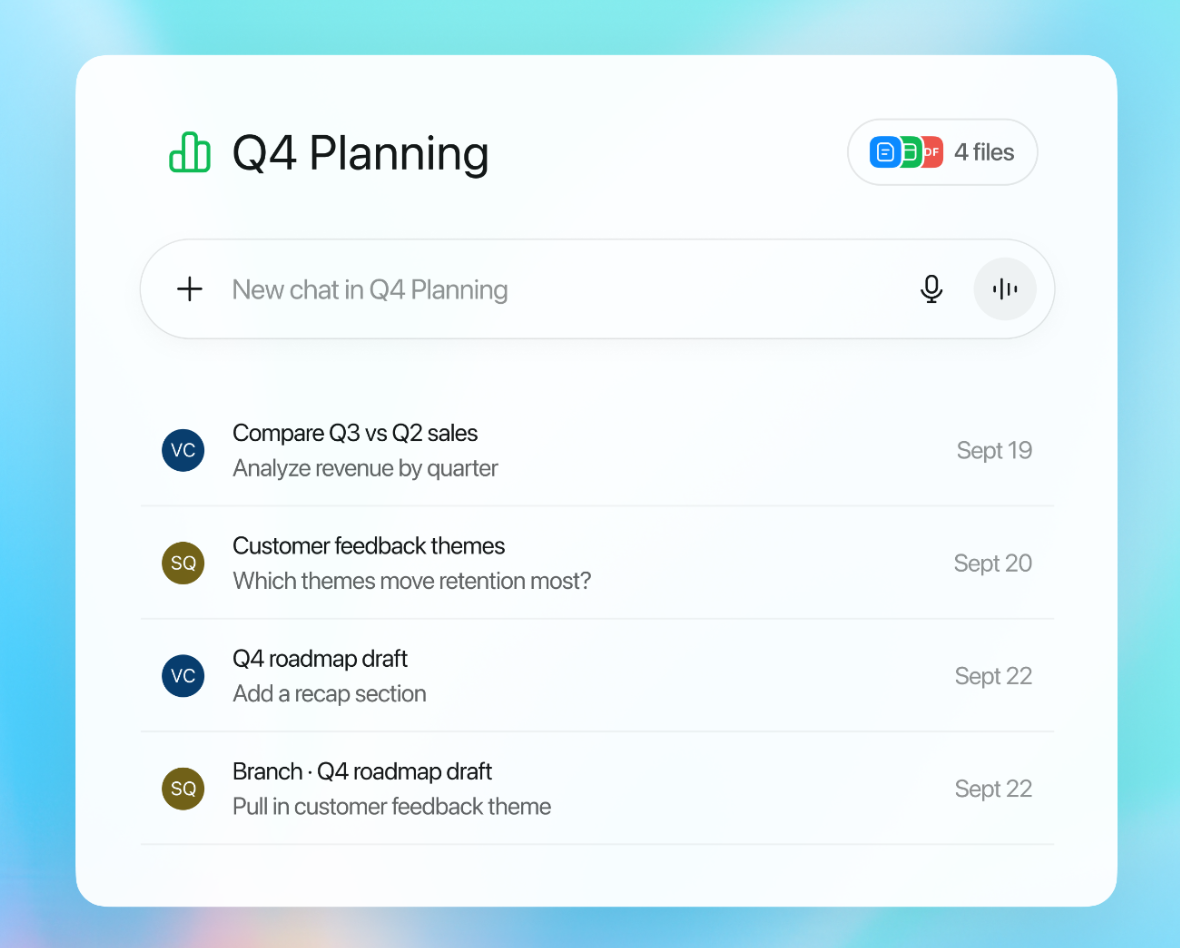
Caption: A ChatGPT Project keeps chats and files in one place so the tool stays anchored to one stream of work.
Source: OpenAI Help Center - Projects in ChatGPT
Claude
Claude taught me a slightly different lesson.
With Claude, I found it easier to keep the setup clean because the personalization pieces are easier to separate in your head. Profile preferences handle the broad guidance. Styles handle how it sounds. Projects keep one body of work from bleeding into another.
That sounds small, but it matters.
When I was experimenting with Claude, I noticed it worked best when I stopped trying to make one chat carry everything. If I had a specific topic or body of reference material, I put it in a Project. If I had a repeat task, I looked at Skills instead of repeating the same instructions over and over. If I needed Claude to work with real tools instead of pasted text, I used connectors.
And for bigger, multi-step jobs, Claude Cowork is where the idea starts to make sense. That is also where plugins matter. I would not frame that as something everybody needs on day one, but it is worth knowing that Claude has a layer for "do the work across a few steps," not just "answer my question."
Claude felt better once I stopped treating personalization like a personality test and started treating it like task design.
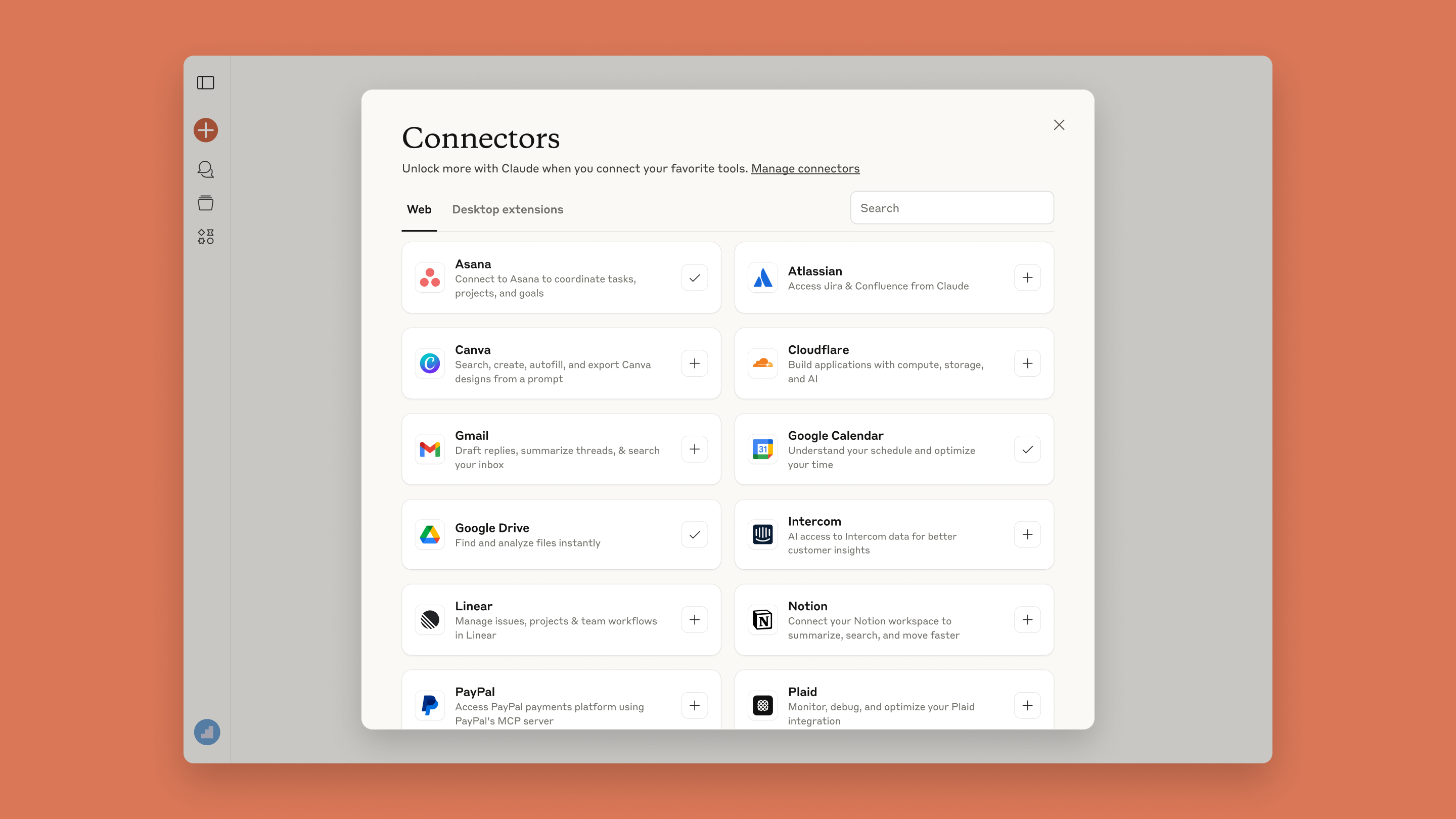
Caption: Claude becomes more useful when it can connect to the tools where your real work already lives.
Source: Claude blog - Discover tools that work with Claude
Gemini
Gemini was the one that made me think most about where the real value comes from.
You can absolutely personalize it with instructions, memory, and Gems, and those all matter. I used instructions for broad guidance, memory for recurring context, and Gems when I wanted a reusable helper for a certain kind of job.
But the part that changed Gemini the most for me was Connected Apps, especially the Google Workspace side of it.
That is where it starts pulling from the places people already work: email, files, notes, calendars, and the rest of the Google stack. Before that, it can still be useful. After that, it starts becoming practical.
That is an important distinction.
A lot of people judge AI too early, while it is still disconnected from the information that would make it useful in the first place. Gemini is a good example of that. On its own, it can help. Connected to the right Google data, it has a much better chance of helping with the thing you are actually doing today.

Caption: Gemini gets much more practical once it can use live Google Workspace data instead of only whatever you pasted into chat.
Source: Google Workspace - Gemini in Gmail
Microsoft 365 Copilot
Microsoft 365 Copilot felt the most obvious to me, because the personalization is tied so closely to where the work already lives.
If a company is already deep into Microsoft 365, the smartest setup is usually not to over-engineer the prompt. It is to make sure the right files, notes, chats, and drafts are already in the system Copilot can work with.
That is where features like Prompt Gallery, Pages, and Notebooks start to matter.
I like Prompt Gallery because it solves a boring real problem: people finally write a good prompt, then lose it, then try to rewrite it from memory badly. Pages are useful when an answer deserves to become a real working draft instead of disappearing into chat history. Notebooks are where Copilot starts staying focused on the right set of material instead of drifting across everything.
Then there are agents and Agent Builder. That is the layer for repeat work. Not "ask me anything," but "help with this job, in this environment, using this material."
Out of the four, Copilot probably makes the most sense when your files, meetings, and day-to-day work are already sitting inside the Microsoft world.
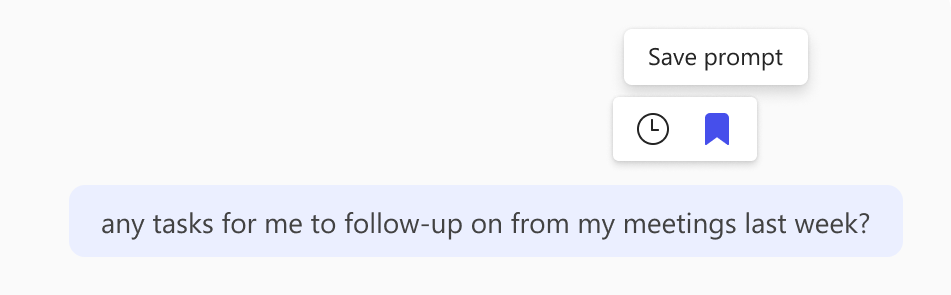
Caption: Prompt Gallery is useful for saving the prompts that worked well, instead of rebuilding them from memory every time.
Source: Microsoft Support - How to save prompts

Caption: Copilot Notebooks are built to keep Copilot focused on one set of files, notes, and references.
Source: Microsoft Support - Microsoft 365 Copilot help and learning
What actually works
After trying all of these, I do not think good AI personalization is about writing one brilliant instruction block.
It is usually this:
Your main rules go in the account-level settings.
Your tone and writing preferences go where the tool expects tone and writing preferences.
Your repeat jobs go into GPTs, Gems, Skills, or agents.
Your real work stays connected through files, projects, notebooks, or app connections.
That is the pattern.
Once you see it, all four tools make more sense.
Bottom line
A personalized AI is not one feature. It is a small stack of features doing different jobs.
The mistake is trying to force all of that into one box.
The better setup is simpler. Give the tool your rules. Give it a reusable role when needed. Give it the right files. Keep each workstream in its own container. That is what makes it feel like it knows you, instead of just sounding polite.
Ask AI this
"Help me personalize this AI tool properly. Split the setup into four parts: my standing rules, my preferred writing style, one reusable helper for repeat tasks, and the files or apps I should connect so answers are based on current information."