How to Set Up Claude Cowork
I used to copy and paste everything. A client would send me a messy spreadsheet, and I would paste the whole thing into Claude's chat window, ask for help cleaning it up, then paste the result back into the file. It worked, but it felt like passing notes back and forth between two desks.
After the third round, the clipboard starts feeling like part of the job description.
Claude Cowork changes that. It is a desktop tool from Anthropic (the company behind Claude) that lets Claude work directly with files and folders on your computer. Instead of pasting content into a chat box, you point Cowork at a folder and let it read, write, and organize files on its own.
I normally avoid naming specific tools on this site, but this workflow depends on Cowork specifically. There is no generic alternative that does the same thing.
What it actually does
Cowork is not a chatbot. It is closer to a digital assistant sitting at your desk with access to a specific project folder.
You select a folder on your computer. Cowork can then read the files inside, create new ones, edit existing ones, and run basic tasks. You still tell it what to do in plain English. The difference is that it works with your actual files instead of just text in a chat window.
That means you can say "organize these notes into separate files by topic" or "turn this rough draft into a proper article" and it does the work right there in your folder.
How to get it
Cowork is part of the Claude desktop app. You need a Claude account (a free account works, though a paid plan gives you more usage).
- Download the Claude desktop app from claude.ai/download if you do not already have it.
- Open the app and sign in.
- Look for Cowork in the left sidebar or the app menu.
- Select a folder on your computer to work with. This is the folder Cowork can see and edit.
That is the whole setup. No terminal commands, no configuration files, no plugins required to start.
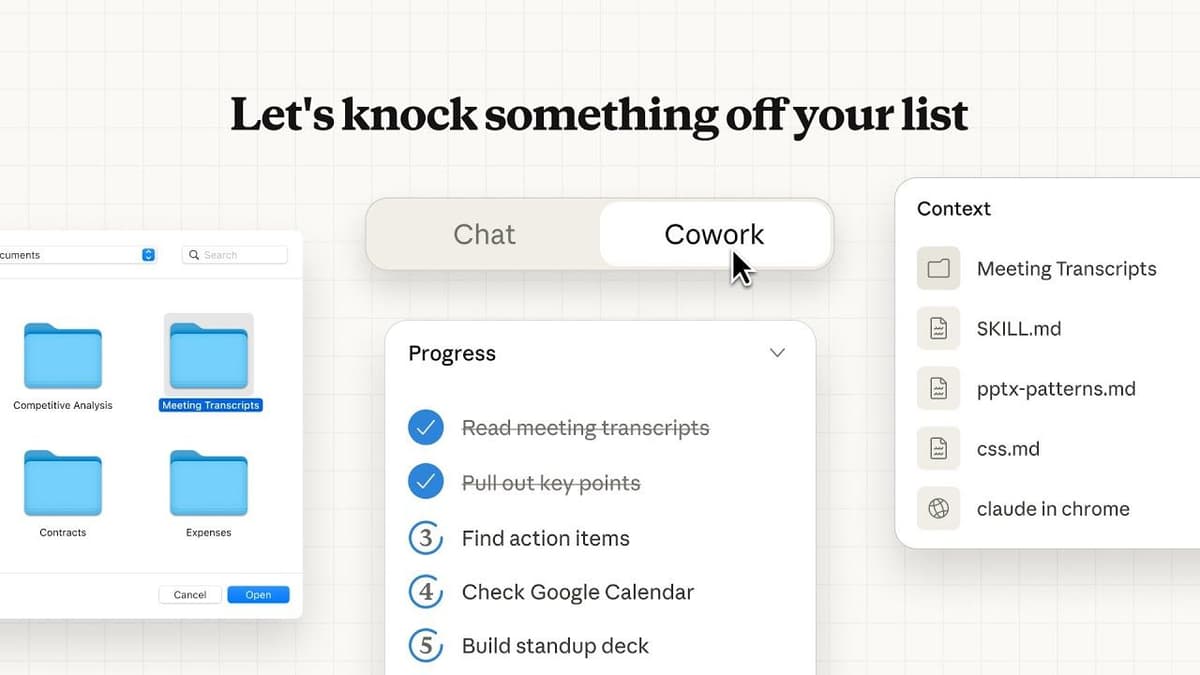
Claude Cowork working from a folder and file context instead of a plain chat box.
Source: Claude Cowork by Anthropic
When this works well
Cowork is useful when you have a folder full of messy notes, drafts, or files that need sorting, rewriting, or reorganizing. If the job involves reading what is already there and producing something better, Cowork handles it.
It is also useful for repeat work. Once Cowork knows the folder structure and the kind of output you want, you can run similar tasks day after day without re-explaining everything.
When it does not
Cowork only sees the folder you point it at. It cannot browse the web, access your email, or pull data from other apps on its own. If the work requires information that is not already in that folder, you need to put it there first.
Bottom line
Cowork turns Claude from a chat tool into a file tool. If your work involves documents, notes, or folders that need regular attention, this is worth setting up.
It is still not magic. It is just much nicer than treating copy and paste like a business process.
Ask AI this
"I have a folder of rough notes on my computer. Can you read through them and organize them into separate files by topic, with a clean title and summary at the top of each one?"